Upload data manually
Last updated: December 3, 2025
Overview
Manual upload is useful during onboarding or occasional corrections. Drag and drop makes the process quick.
Step by step
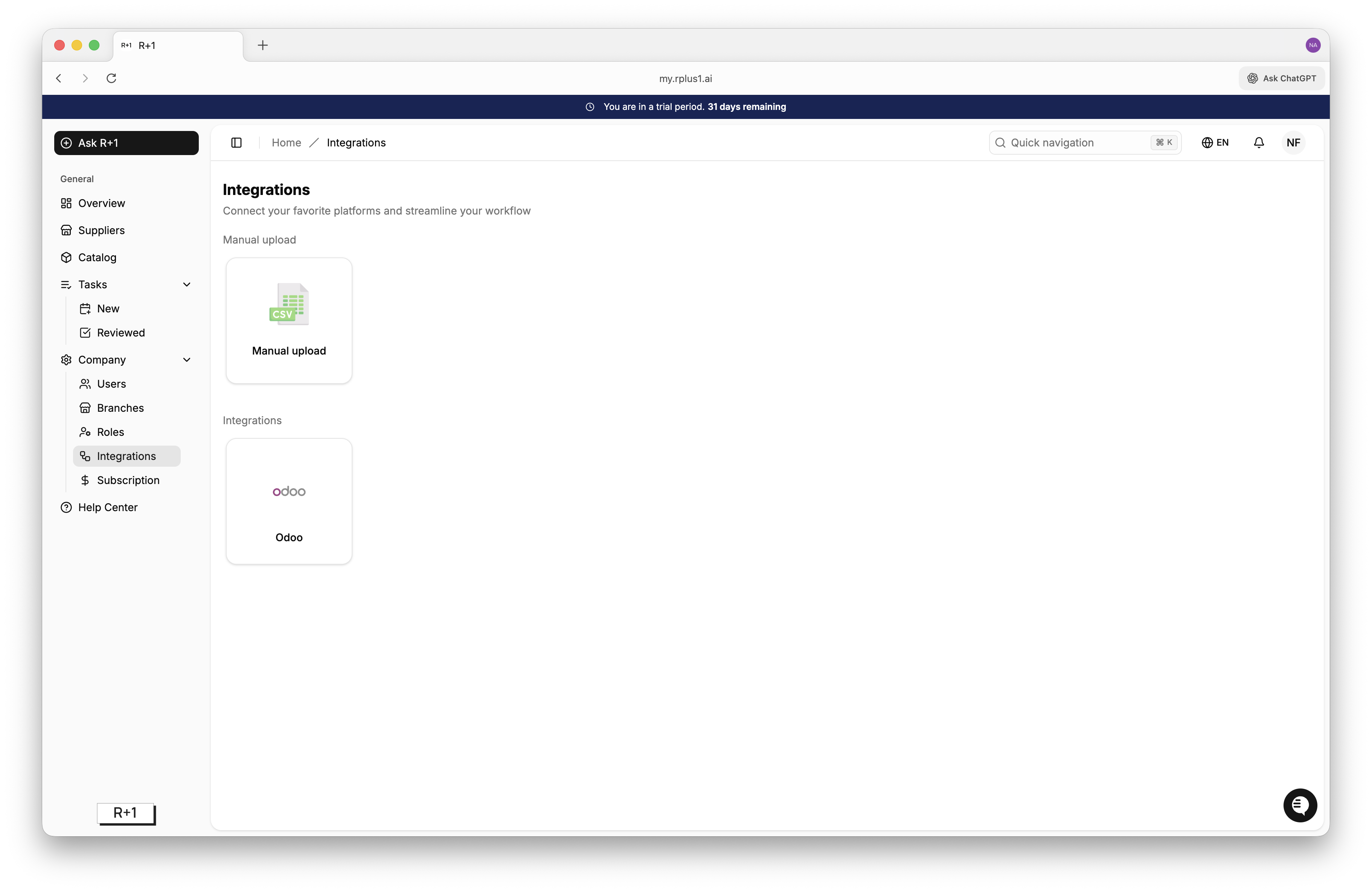
Click Integrations in the left nav.
Select the Manual Upload icon.
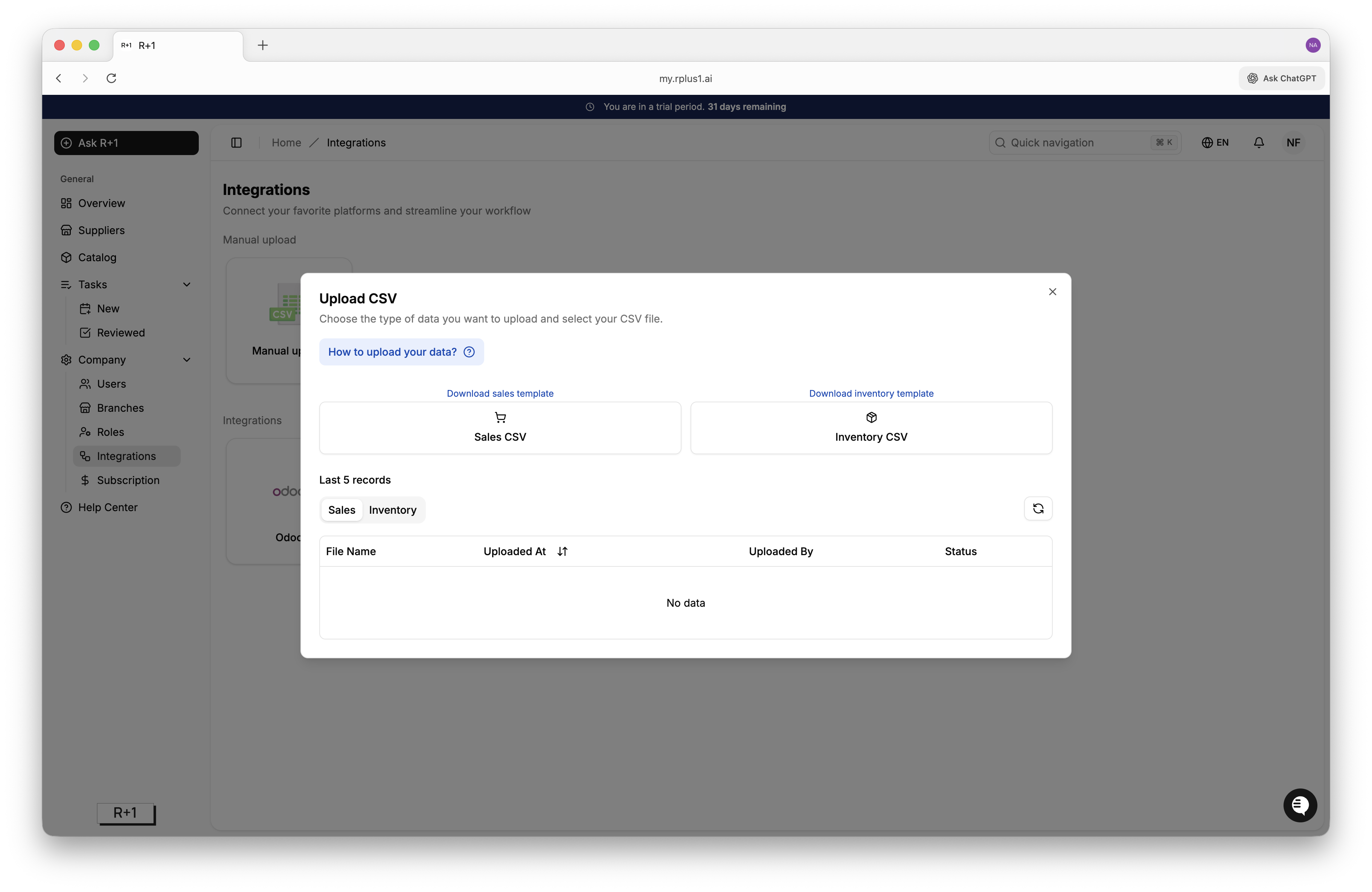
Either the Sales CSV or Inventory CSV tabs.
Download the respective template and follow the instructions to fill the data.
Drop your
sales.csvandinventory.csvfiles into the upload box or use Browse files.Wait until each file shows a green Complete badge, indicating it has passed validation.
What happens next
The ingestion pipeline processes the files immediately. New tasks appear on the home dashboard within fifteen minutes.
Tip
Always upload the sales file first then the inventory file for the same date range so metrics line up.