First steps
Last updated: July 11, 2025
Summary
Your R+1 workspace is ready as soon as you sign in, however the platform needs three basic inputs before it can create its first set of recommendations: branches, sales data, and inventory data.
Sign in and view the dashboard
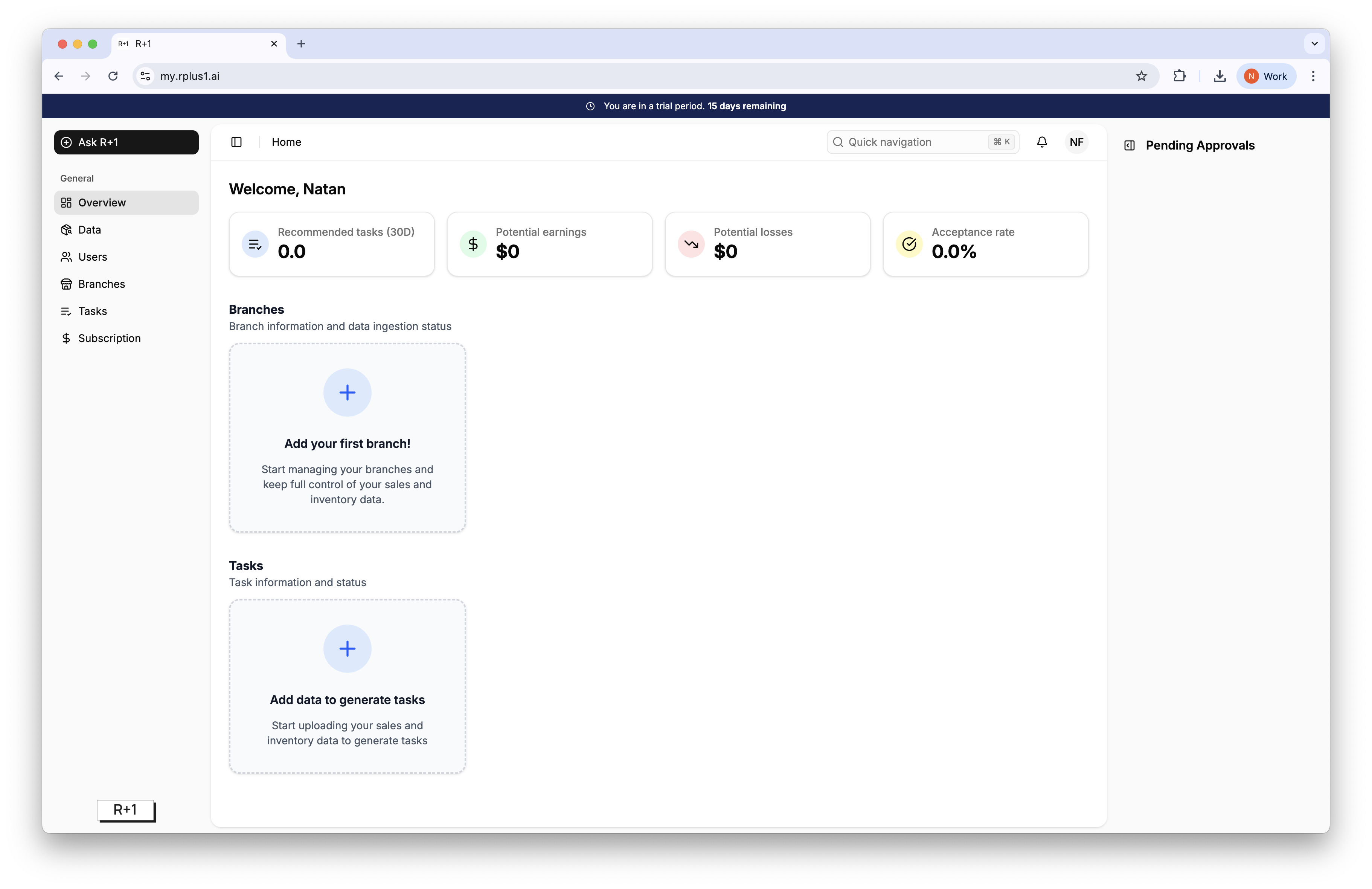
After you log in for the first time the Overview page appears. Because no data exists yet you will see an empty dashboard with two banners that prompt you to add a branch and upload data.
Add your branches
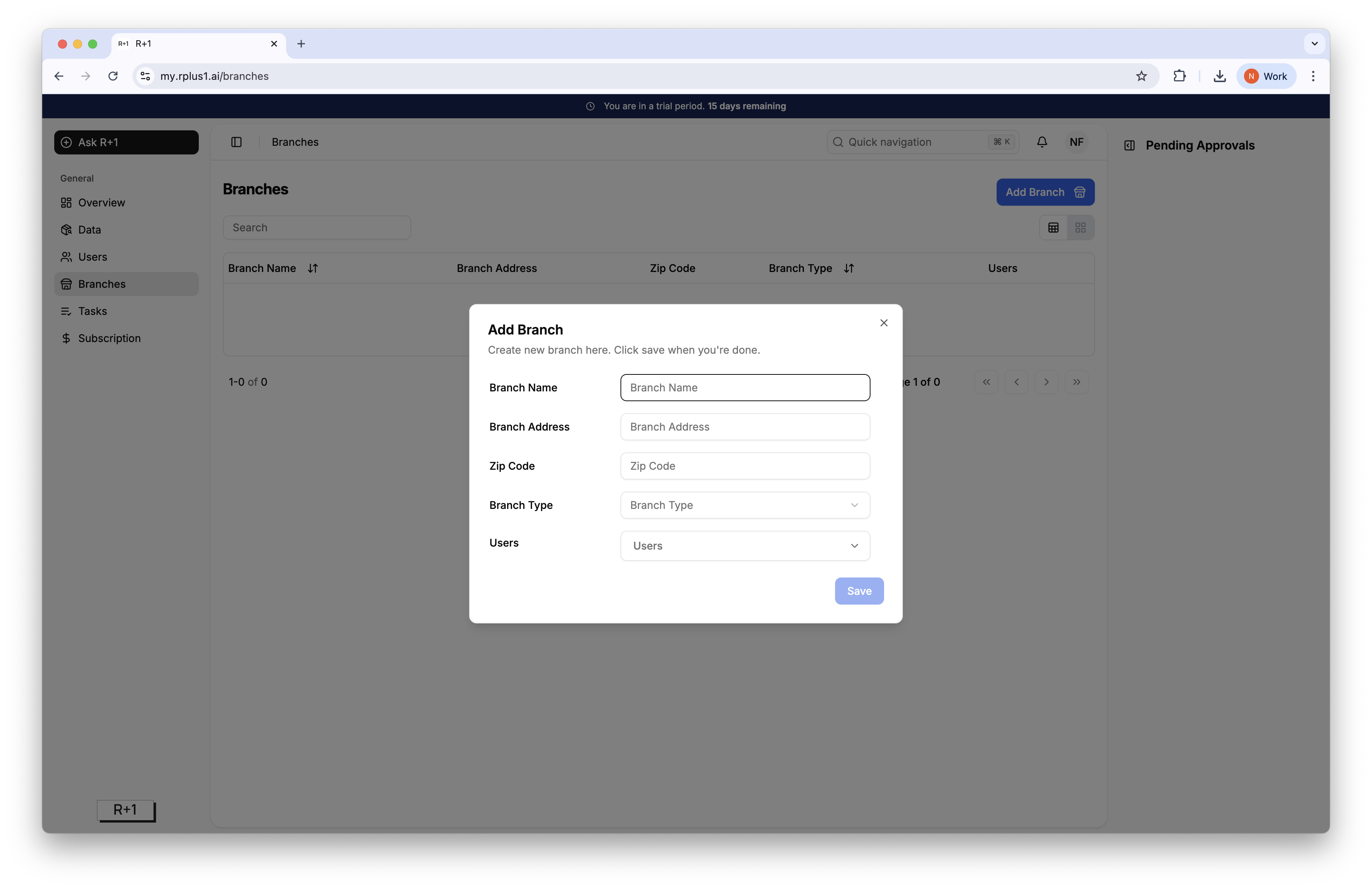
Click Add your first branch on the banner, or open Branches in the left navigation.
For each location complete Branch name, Branch Address, Zipcode, Branch Type (physical or e-commerce) and Users (if any), then click Save.
Repeat until every physical store, dark store, warehouse, or e-commerce outlet has been added.
Tip
Use exactly the same branch names that appear in your sales and inventory files. Matching names prevent data from landing in the wrong place and keep future reports accurate.
Upload sales and inventory data
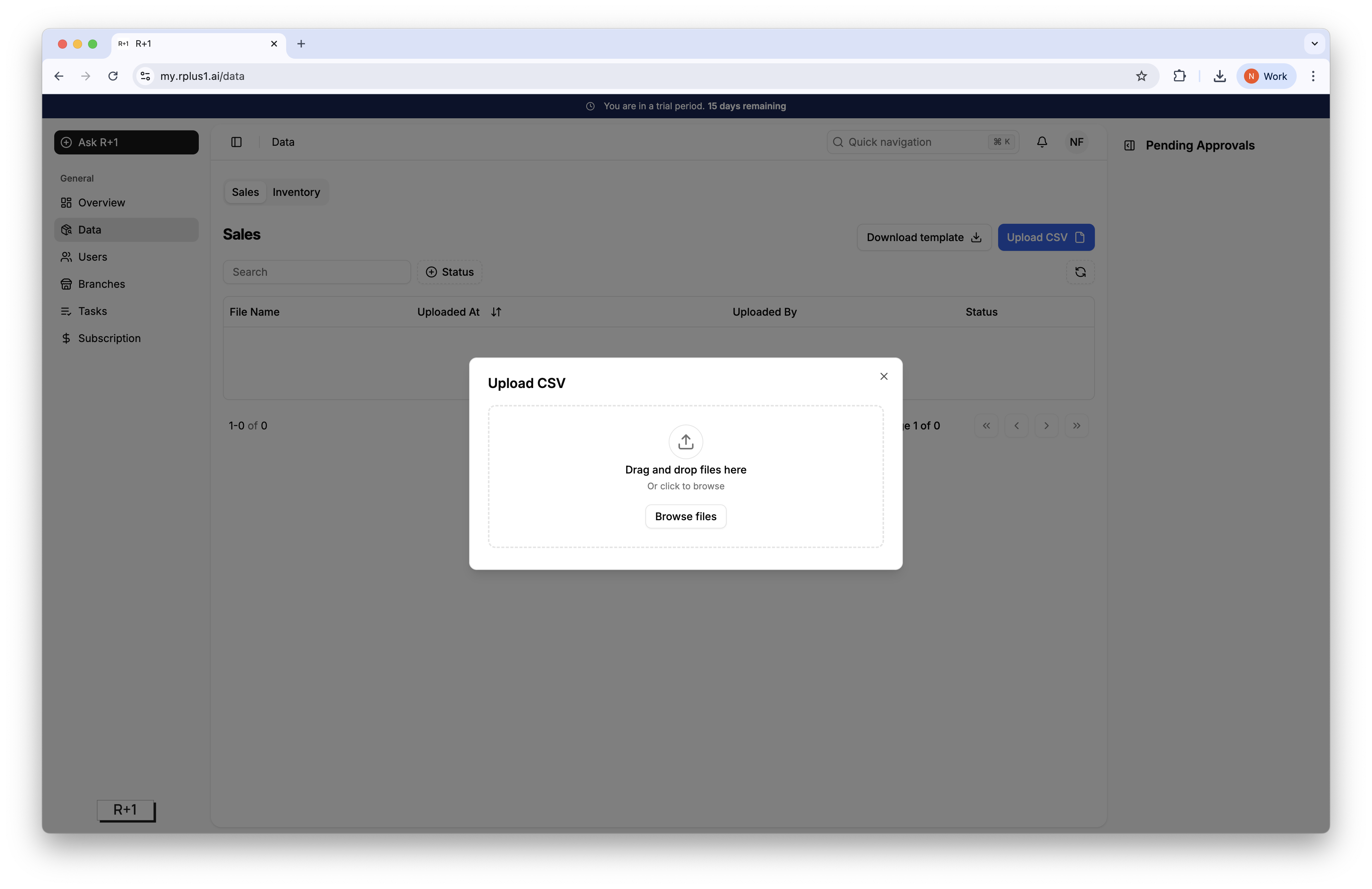
From the empty dashboard click Add data, or open the Data tab.
Select Sales and upload your sales.csv file following the provided template. Wait for the green Success badge.
Select Inventory and upload your inventory.csv file following the provided template. Again wait for the success badge.
Best practice
Upload as much data history as possible for sales data and a current snapshot of inventory. A longer time series lets the forecasting engine learn seasonality and improves task accuracy.
Make sure the branch names in each file match the ones created in the Branches section.
What happens next
Within a few minutes R+1 will process the data, populate the dashboard KPIs, and generate the first tasks. You can then review tasks under Tasks or directly in the Pending Approvals panel.